Book an Aerial Survey
If the area you are interested in is not available on Routeview, or the coverage has only older photos, it is possible to oder a new set of images to be surveyed and published via the AirOps team. To specify which area you are interested in, you can use the Book AirOps tool to specify this and start the ball rolling. To access the tool, click on the Home Menu:
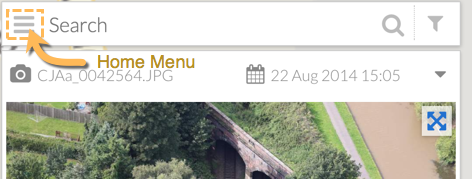
And then select Book AirOps from the menu:
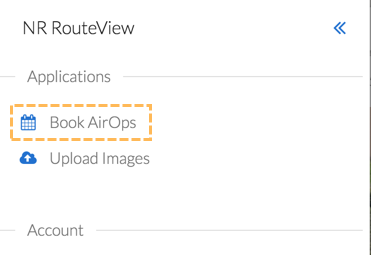
This opens the Book AirOps application showing the whole of your network with a search tool and drawing tools in the top left of the screen:
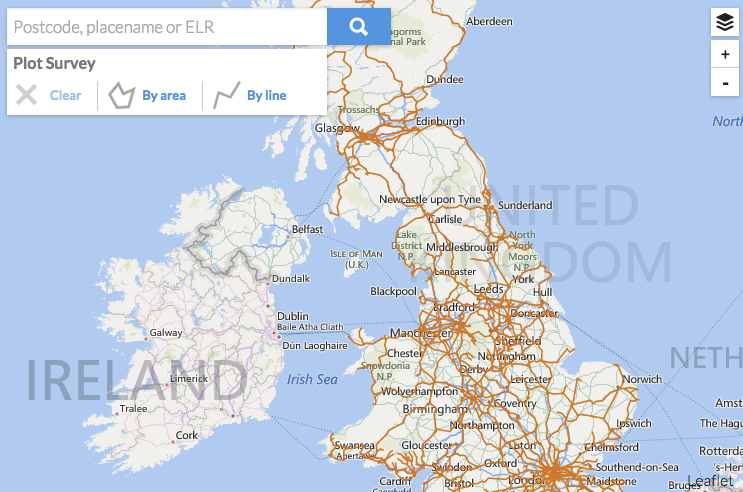
You need to define your area of interest using the drawing tools and submit the request to the AirOps team.
To define an area you’ll need to find it and zoom in. This can either be done manually by zooming into the map using the ‘+’ and ‘-’ zoom tools and dragging with the mouse.
*If you have a mousewheel you can scroll it to zoom in and out of the map
To get down to your area of interest quickly you can use the Search tool. Simply enter your search criteria in the search box and click the magnifying glass icon. Acceptable search terms are place name, postcode, and ELR reference:
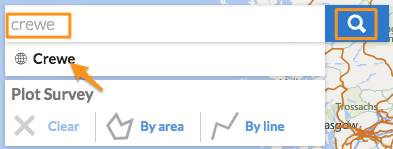
In the above example the user entered ‘crewe’ in the search box and clicked the magnifying glass. This listed all the known Crewe’s below the search box, so clicking on the desired result would then zoom the map and centre it on Crewe.
The next step is defining the required survey area. This can be done using either the Area or Line tools depending on the type of coverage you need.
Defining a Survey Area
Click the By Area icon:

then define the survey area by clicking the 3 or more boundary points making a polygon:
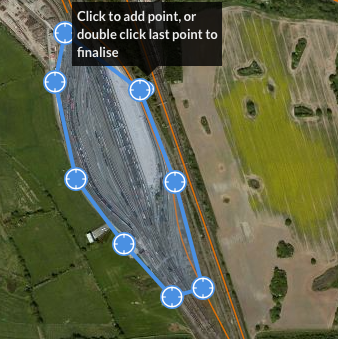
To complete the polygon, double click the last point added. This will open up the survey definition form to complete the booking.
Defining a Linear Survey
Click the By Line Icon:

Then click along the line of interest to define the required survey:
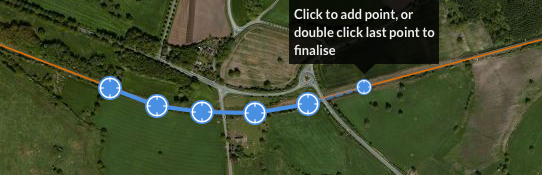
Simply double click the last point to complete the definition. This will open up the survey definition form to complete the booking.
Survey Definition Form
Complete the fields in the form with as much detail as possible:
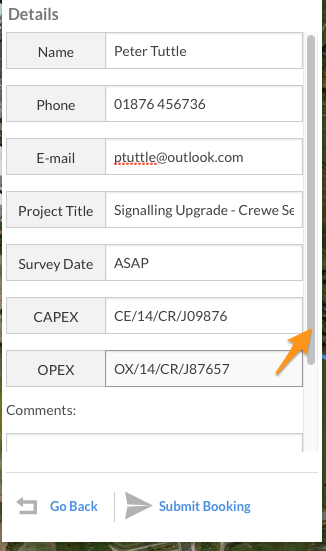
Please note that, depending on screen size, there may be more fields to complete which are not initially visible. Drag the scroll bar on the right hand side of the form to bring these fields up ready for completion:
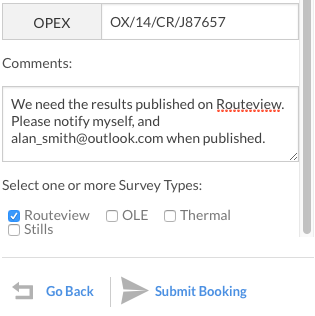
The following fields are currently available on the form:
Name | Your Name |
Phone | A contact number mobile or landline for any queries |
Your email address | |
Project Title | A title for your project |
Survey Date | When you need the survey to be carried out. If you have a specific date, enter it here, or enter some more generic term such as ‘Before **End December 2014’, or ‘ASAP’ |
CAPEX | Your CAPEX reference number |
OPEX | Your OPEX reference number |
Comments | Any further comment you think would help Airops understand your requirements |
Survey Types | There are 4 types of survey – you can select one or more of these. |
Routeview – An oblique survey running along the length of track producing geo-referenced (measurable) images. | |
OLE – Overhead Line Equipment Survey. | |
Thermal – Thermal images | |
Stills – Oblique Still images of point features (i.e. non linear). Images may or may not be geo-referenced. |
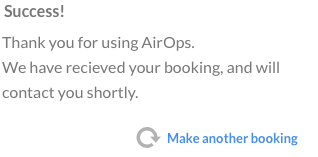
When you are happy that all the fields have been completed press the Submit Booking button. If your have entered all the required fields in a suitable format you will be greeted with a success message:
You should receive a confirmation email (sent to the email address you entered in the form), giving you the details of the booking. AirOps will also receive notification and will begin processing the request. They will contact you shortly to discuss the job.