The Engineer’s Line Reference (ELR) system is implemented within Routeview in two ways:
Find a location on a map by entering the ELR
Find the ELR of a given location by pointing on the map
Searching for an ELR
Enter all or part of an ELR in Search Box at the top left of the Routeview window
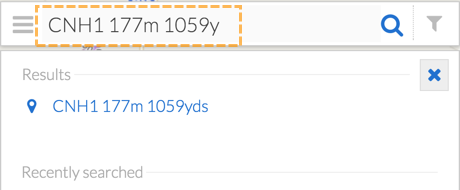
The matching ELR codes will be displayed below the search box. If no match could be found the results list will be empty.
Click on a result to re-centre and zoom map
Note that there are several ways of specifying an ELR in the search box, for example for the following ELR:
CNH1 177m 1059y
This can be entered as CH1 177m 1059y or you could replace the yards with chains, eg. CNH1 177m 48ch. If you just enter a number without units it assumes you meant miles and yards eg. CNH1 177 1059 is equivalent to: **CNH1 177m 1059y*
If only the first part is entered such as CNH, clicking on the result would take you to the whole line’s extent.
Measuring ELR
Click on the Map using Feature Information tool
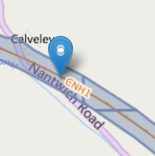
The ELR at that location along the line is displayed in the Fetaure Information Card”
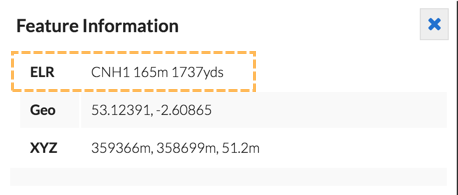
Note that if you do not click close enough to the track, no ELR will be returned, though you will get coordinates of where you clicked.
If you wish to copy the result, select the text, and press Control-C or Command-C on a Mac to copy to the clipboard:
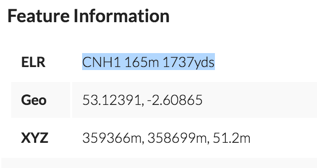
or right-click on the highlghted text and select Copy from the menu.